How to use it
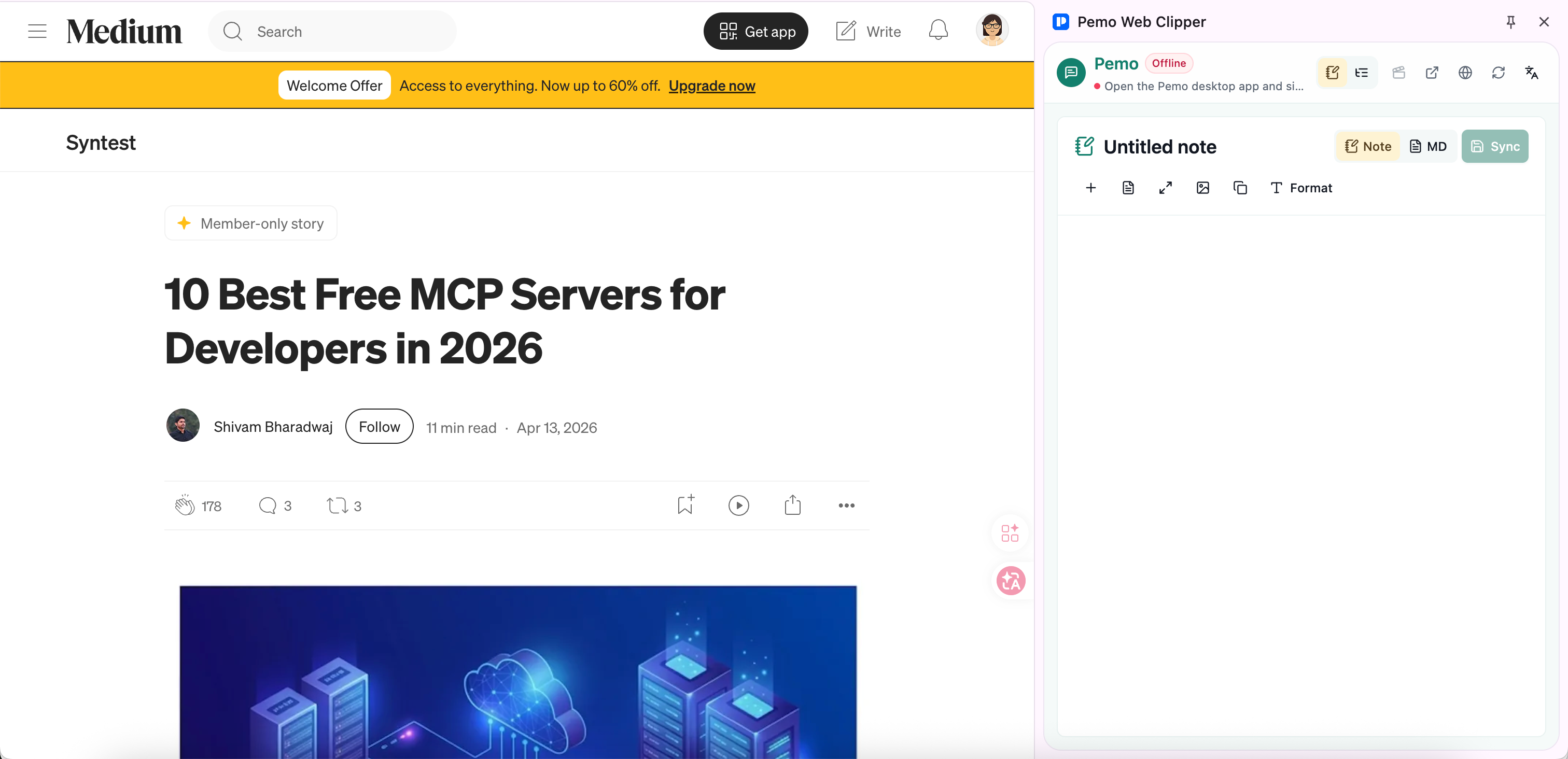
Pemo Web Clipper Browser Extension turns temporary browser research into reusable Pemo notes. You can capture full pages, selected text, screenshots, page images, visible comments, social posts, video metadata, and available subtitles.
The extension owns browser-side capture, preview, and the pending capture list. Pemo desktop remains the source of truth for workspaces, files, notes, prompts, and long-term material organization.
Before saving to Pemo, open Pemo desktop and sign in to your Pemo account. If the side panel says the desktop app is not connected or not signed in, finish signing in on Pemo desktop first, then return to the extension and save.
Install entry
- Open the Pemo Web Clipper page on Chrome Web Store
- Chrome 116 or later is required
- Click Add to Chrome on the store page and follow the browser prompts
- After installation, click the Pemo Web Clipper icon in the browser toolbar to open the side panel
What you can capture
- Pages and articles: save title, source URL, text excerpts, and page metadata
- Selected text: send important passages into the pending capture list while reading
- Screenshots and page images: useful for charts, code snippets, product screens, and evidence
- Visible comments and social posts: keep discussions, viewpoints, and research leads for later analysis
- Video metadata and available subtitles: turn video sources into note material
Save to Pemo
Before saving for the first time, make sure Pemo desktop is running and signed in with your Pemo account. The side panel shows the desktop sign-in state; if it asks you to sign in, open Pemo desktop and complete sign-in first.
Before saving, review the title, source, body text, and images in the side panel. Then save the capture to a Pemo note.
Privacy and permissions
The extension does not request the Chrome cookies permission, does not read browser authentication cookies, and does not use captured content for advertising, data brokerage, or unrelated analytics.
Page content, screenshots, images, and subtitles are handled only when you trigger a capture, preview, or save action. Pending captures and local drafts stay on your device.
Good fit for
- Web research capture
- Paper, news, blog, and legal webpage excerpts
- Product screens, data charts, and evidence screenshots
- Video subtitles, social discussions, and comment-thread leads
Key points
- The browser extension captures material; Pemo desktop owns long-term notes and knowledge assets
- Open and sign in to Pemo desktop before saving
- The extension does not read browser authentication cookies, and capture actions are explicit