1. Download and install Ollama
Ollama is a local model runner. Once it is installed and running, Pemo can call local Ollama models for Q&A.
- Open the Ollama download page.
- Choose macOS, Windows, or Linux.
- On macOS and Windows, download the installer and follow the prompts.
- On Linux, follow the terminal command shown on the download page.
- Start Ollama and keep it running in the background.
For platform details, also check the Ollama GitHub documentation.
2. Download a local model
After installing Ollama, download at least one model. Use the exact model name shown in the Ollama Library.
In a terminal, run:
ollama run <model-name>
For example, Ollama's official docs show commands like:
ollama run gemma4
On first run, Ollama downloads the model and opens a local chat session. Type /bye to leave the terminal chat.
Start with a smaller model if you are unsure. Larger models need more memory and GPU/CPU resources.
3. Use Ollama in Pemo
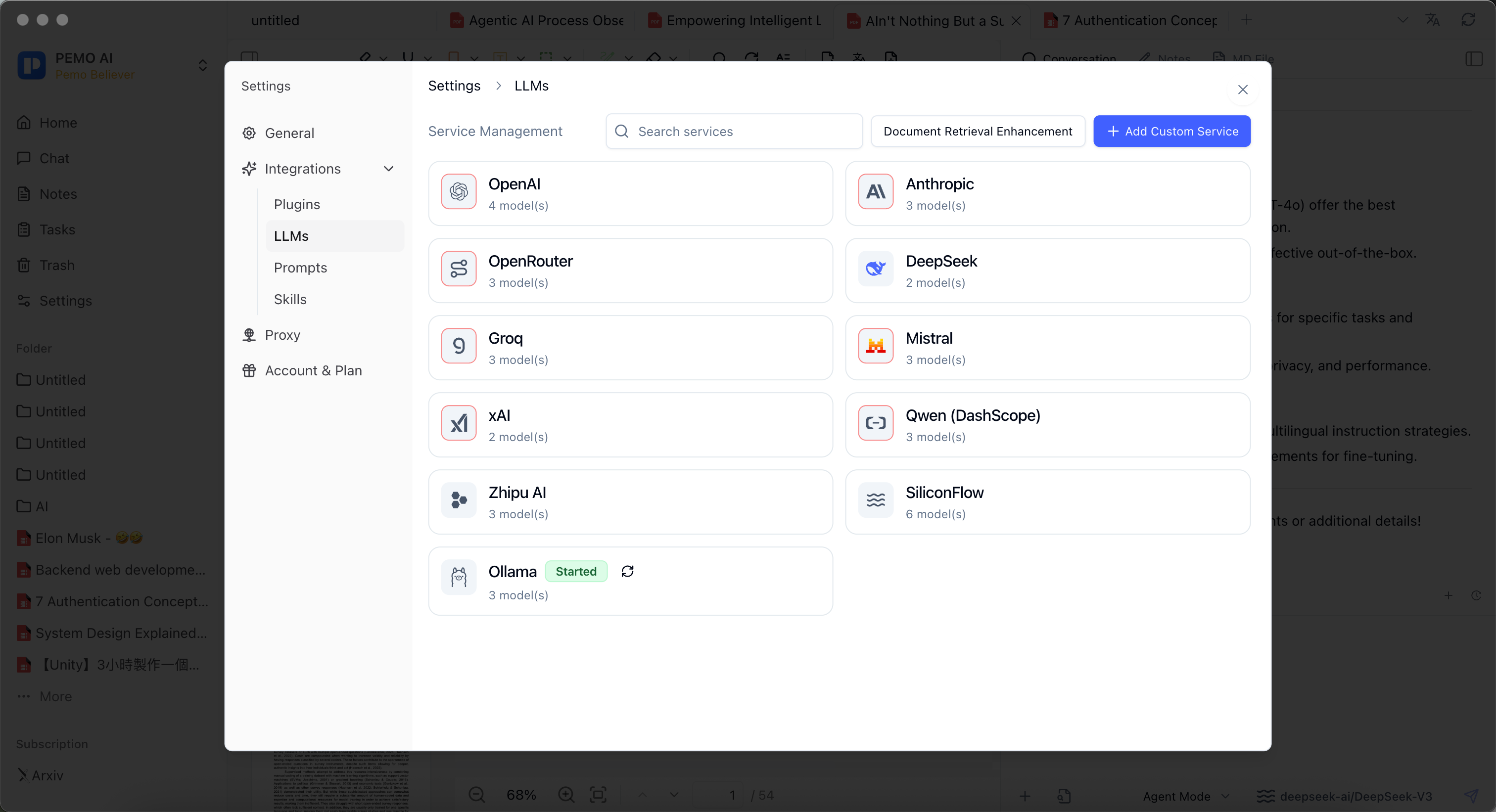
- Make sure Ollama is started and running in the background.
- Open Pemo settings.
- Go to AI service management.
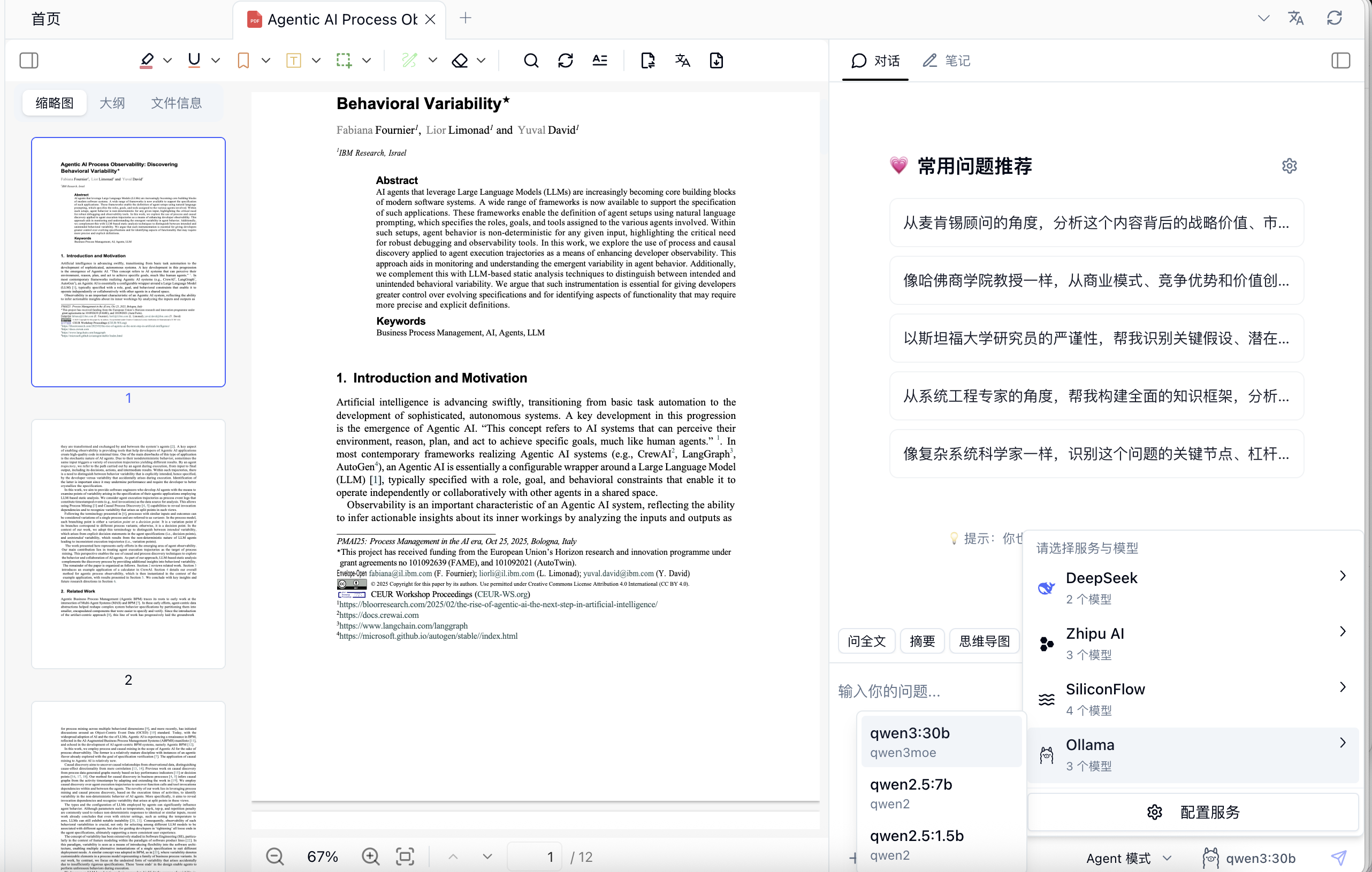
- Pemo detects the local Ollama service automatically, so you do not need to add a service URL manually.
- Click Refresh to check whether Ollama is available and load downloaded models.
- Select a local model that has already been downloaded by Ollama.
- Return to document Q&A or general Q&A and choose the Ollama model.
4. Checklist
- Ollama is running in the background.
ollama listshows the model you downloaded.- Pemo shows Ollama and the downloaded models after refreshing.
- Your computer has enough memory and compute for the selected model.
- Sensitive document Q&A is using Ollama, not a cloud model.
Good fit for
- Local Q&A over sensitive materials.
- Reducing cloud model calls when your computer is capable enough.
- Testing open models on your own machine.
- Using Pemo document Q&A in a local-first workflow.